Item name
P/N —
- Minimum
- —
- Location
- —
- Order
- —
- Supplier
- —
Product photo

No more stockouts, spreadsheets, or guesswork. Generate smart Kanban cards that tell you what to order and when.
Use the supplier link to fill in the part details, or enter them yourself. Check the supplier, quantity and shelf location before you print.
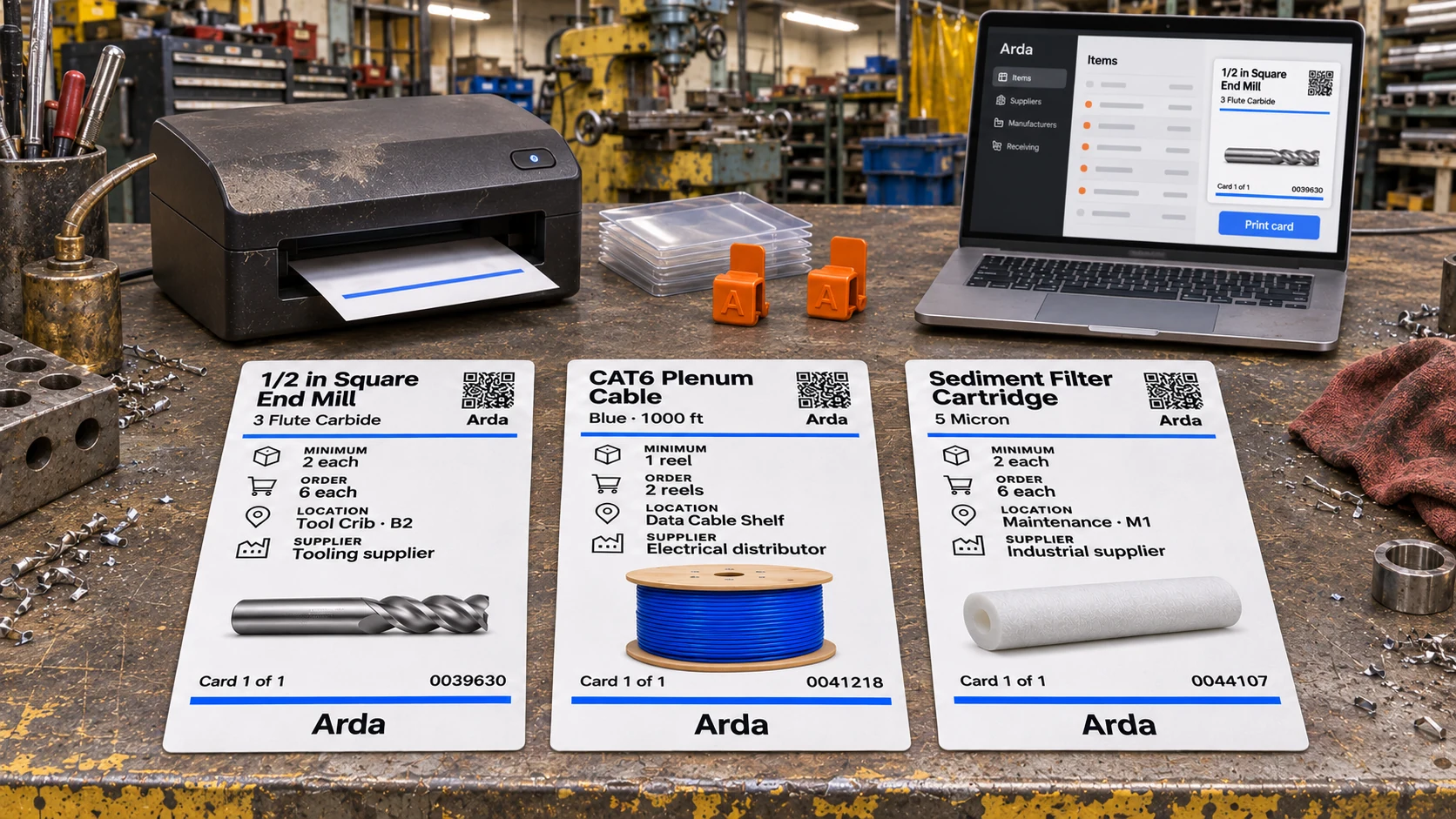
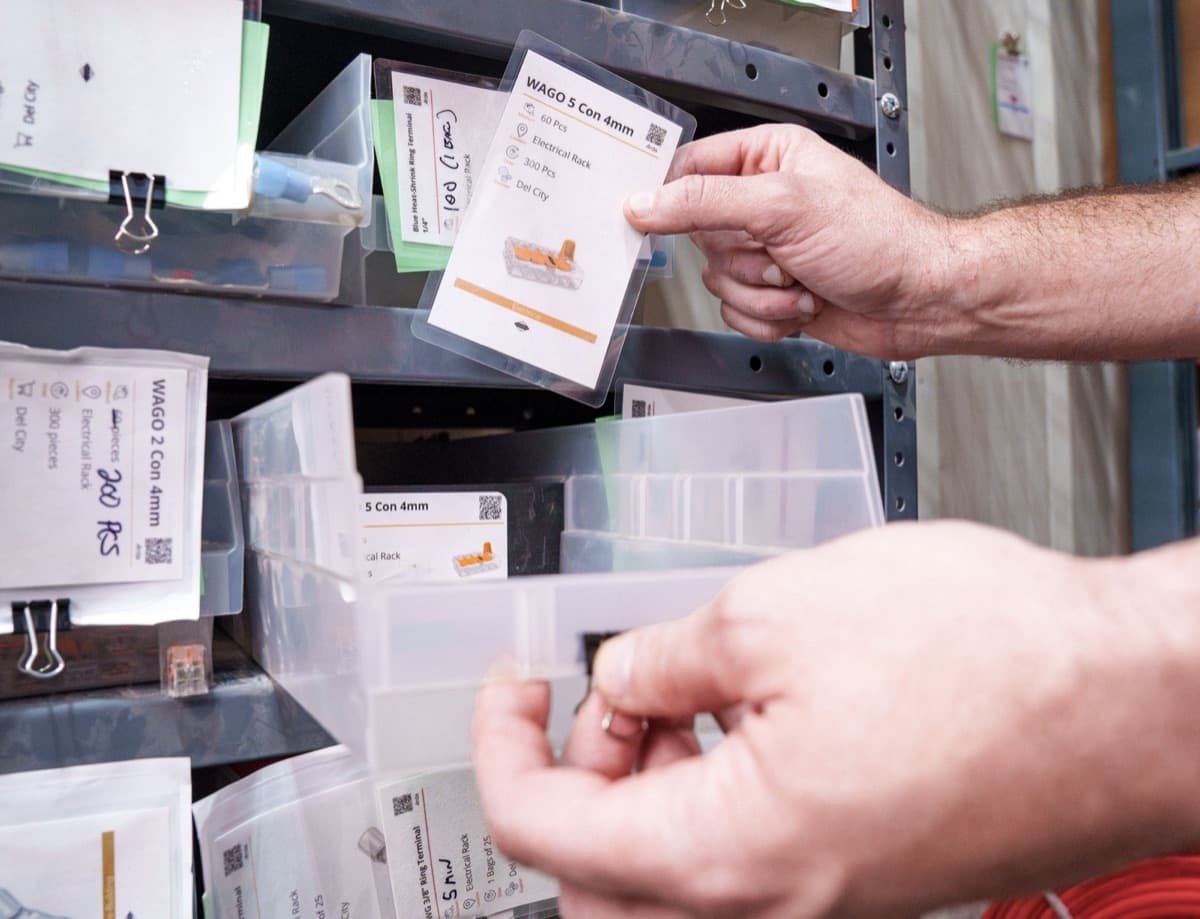
Place the card in front of the reserve stock on the shelf. Leave enough behind it to last until the next delivery. Reaching the card means it is time to reorder.
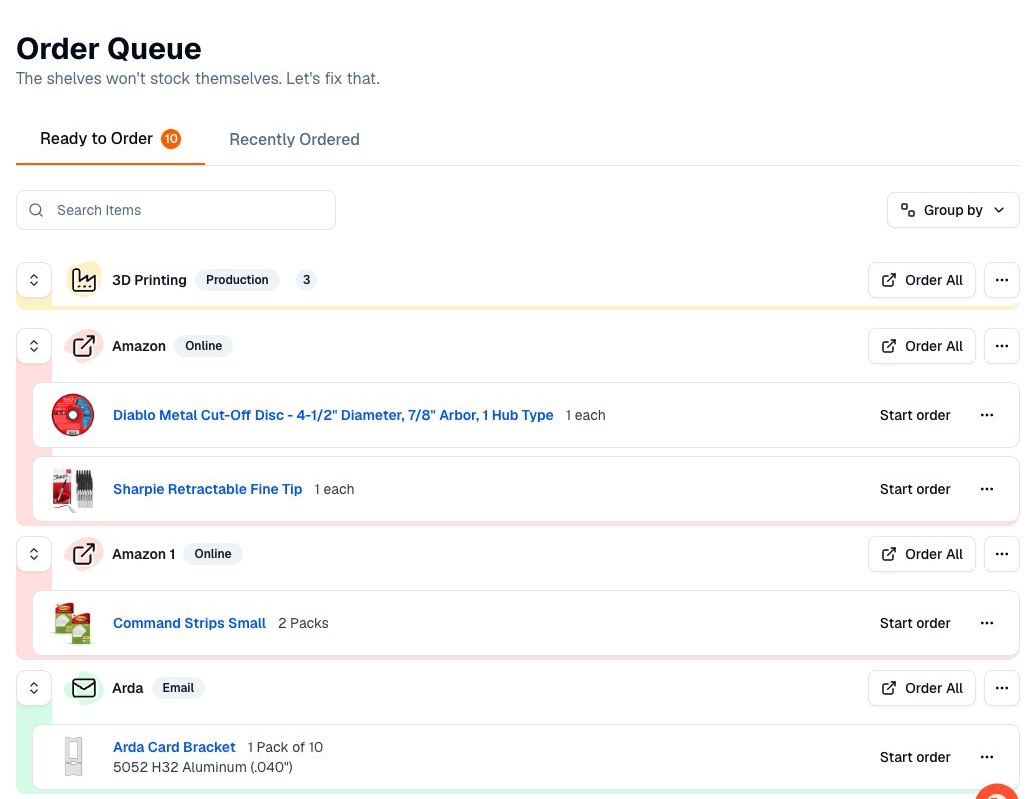
A pulled card still needs someone to place the order. In Arda, a designated person scans it on a signed-in device. Purchasing reviews requests by supplier and places the orders. Receiving returns the cards with the stock.
Yes. Create the card, download the PDF or use Print this card. You do not need an Arda account. Print at actual size on 3 × 5 inch paper.
Scanning the QR opens this card’s saved details, supplier link and download options. It does not place an order. Follow your team’s reorder process using the details on the card.
Set the minimum to cover expected use while purchasing processes the request and the supplier delivers. Add a buffer for variability. Choose an order quantity that fits your rate of use, supplier pack sizes, and available space. Review both settings when demand or lead times change.
Yes. Agree when to pull the card, where to leave it and who places the order through your usual process. Return the card with the restocked part. Free printing does not include the digital Order Queue.
No. Team members can pull physical cards and leave them at an agreed collection point. If you use Arda's digital workflow, a designated person can scan the batch on a device signed into Arda.
The next step is making sure someone places the order. See how Arda gives your team one queue to work from, so reordering depends less on what you remember.